QR codes have become part of our daily routines. From scanning menus at restaurants to checking into events, verifying product details, or even making contactless payments, we encounter them everywhere.
But while QR codes are now mainstream, not all QR scanners are created equal. Some are clunky, some require you to download heavy apps, and others don’t always decode properly.
So, we decided to hunt for a solution that has very few drawbacks and all the advantages.
That’s when we stumbled upon QRScanner.net, a free online QR code scanner. Today, we are going to review this tool to see how well it actually works in practice, its pros and cons, and whether you should use it or not.
First Impressions
One of the first things you’ll notice is the clean and minimal interface. The landing page itself contains the QR scanner. It opens straight into two clear options:
Upload: drag-and-drop or paste a QR code image.
Scan QR Code: Use your device’s camera for pseudo-real-time scanning.
So, users understand in a single glance that both options are supported.
Since it is a browser-based tool, it works both on mobile and desktop. This is convenient for many people who encounter QR codes while surfing the web.
Unlike mobile-only scanners, it works seamlessly on both desktops and smartphones. For many users, this is convenient because they don’t have to clutter their phone with another app.
How Does QRScanner Work
So, as we have mentioned, it has two major ways of scanning QR codes. Their details are given below.
1. Using the Camera
When you select “Scan QR Code,” the site requests camera access. Once granted, you can point the camera towards a QR code and snap its picture. The picture is then automatically uploaded and scanned. So, it is a pseudo-real-time scan.
A beep confirms the scan, and the result appears in the “Scanned Items” panel on the right.
2. Uploading an Image
If you already have a QR saved as a screenshot or file, simply upload it.
To do that, click on the blue “Upload Image” button, and a file browser will open up. You can also simply use the keyboard shortcuts “CTRL+C” and “CTRL+V” to directly paste a QR code into the interface.
A preview of the code will show up, and the output will instantly appear on the right side as well.
3. View The Output
The results of your last 50 scans will appear in the output. You can copy them, delete them, or download them. The output shows the following things:
QR code type, such as TXT, Contact, WiFi, MeCard, etc.
The encoded data
The results are neatly lined and numbered, and you can easily view them.
Test Cases: Putting QRScanner.net to the Test
So, a QR scanner is only as good as its accuracy. If it cannot scan the codes, then it is useless. We tested QRscanner.net with five different codes to check if it is accurate or not.
So, here they are, and you can see the results for yourself.
Email:

This is a sample code containing an email address.
Event:

This is a sample code containing an event’s details.
MeCard:

This is a sample code containing a person’s info.
Phone:

This is a sample code containing a phone number.
WiFi:

This is a sample code containing a WiFi network’s password.
TXT:

Testing Output
The results of the test were a resounding success. QRscanner was able to scan and decode all the codes without any problems. It showed us the correct results for all codes, which you can see in the image below.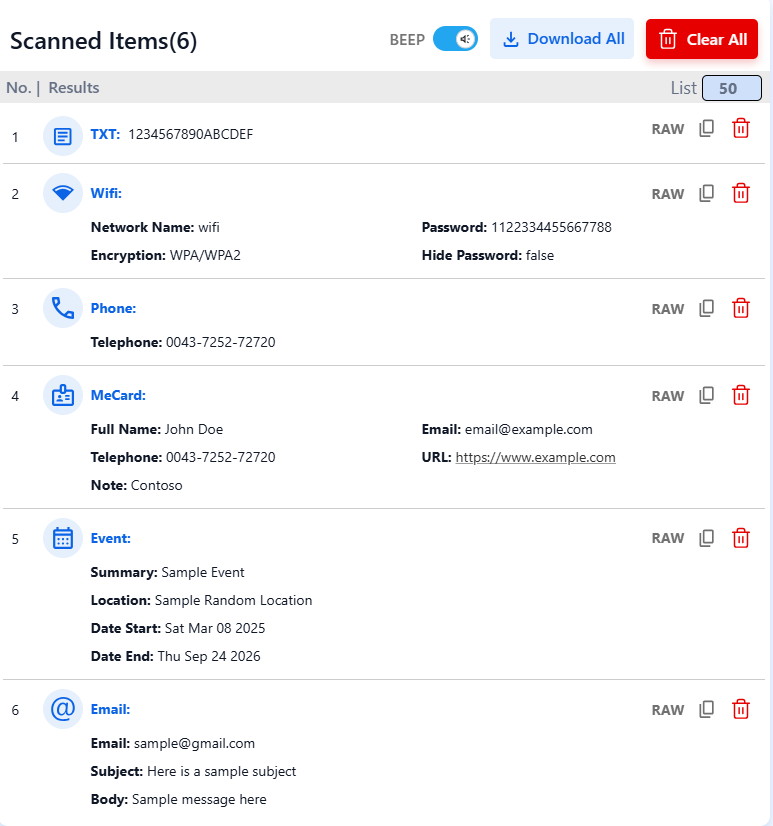
Features at a Glance
QR scanner(.net) has great features. They improve the user experience and make it a must-have tool for scanning QR codes. Here are some of its more flattering features.
Instant Results. Scans appear in a results panel with the decoded information, whether that be text or clickable URLs.
History Tracking. Results are saved with timestamps, letting you revisit past scans.
Export Options. You can download all scanned items as a list or clear them instantly.
RAW Data Access. View the decoded data directly, not just the hyperlink.
No App Required. Everything runs in-browser, which makes it lightweight and accessible.
No Payment or Registration Needed. The tool is free to use and doesn’t require an account either. This means using it is convenient and seamless.
No Limits On Scanning. Unlike some other free tools, our QR scanner doesn’t have any scanning limitations. You can use it as much as you like.
Limitations We Found
However, nothing is perfect, and even good tools have their limitations. Some of the drawbacks of this tool are as follows.
Requires Internet: Since it’s an online tool, you need a stable connection.
Camera Permission Needed: Some users may hesitate to grant browser access to the camera (though QRScanner.net notes that it doesn’t share or store your data).
That said, these are just necessary compromises and trade-offs. They are not that difficult to work around. So, they don’t detract from the quality of QRscanner.net.
Final Verdict
QRscanner.net is a great tool. In our testing, it handled all major QR use cases with ease. It performs fast, is easy to use, and doesn’t require an account or payment.
While power users might want offline or advanced features, for everyday scanning, it gets the job done with zero fuss.
The bottom line is that if you want a fast, browser-based QR code scanner that works across devices, QRScanner.net is worth bookmarking.